A Comprehensive Guide to Sending Your First Bulk SMS Using Sozuri Platform
If you want to send SMSes via Sozuri, there are a few things you need to set up first. Here’s a step-by-step guide on how to get started:
Step 1: Register for an Account
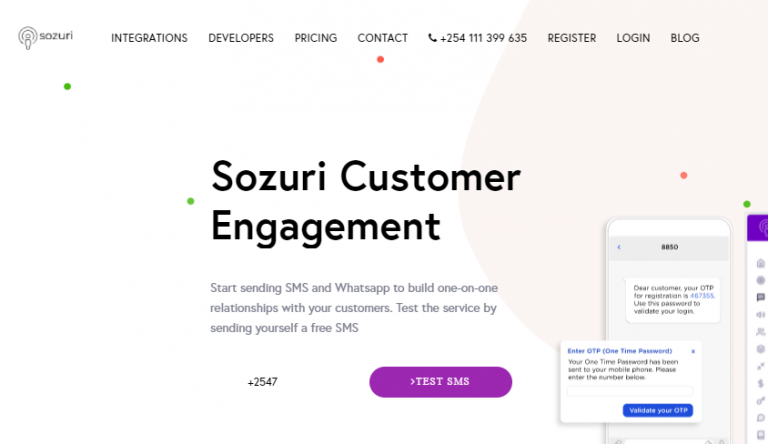
To start using Sozuri, go to www.sozuri.net and click on the “Register” button. This will take you to a registration page where you’ll need to provide some basic information. Once you’ve completed the registration process, you’ll be ready to create your first project.
Step 2: Create a Project
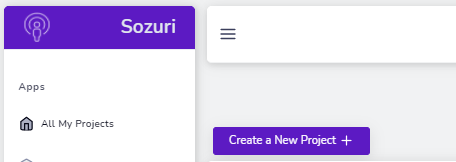
Once you’ve registered, log in to your account and click on the “Create a project” button. Give your project a name that corresponds with your business name. It’s best to use just one word, such as “malirahisi”. You only need to create a project once.
Step 3: Access Your Project Dashboard
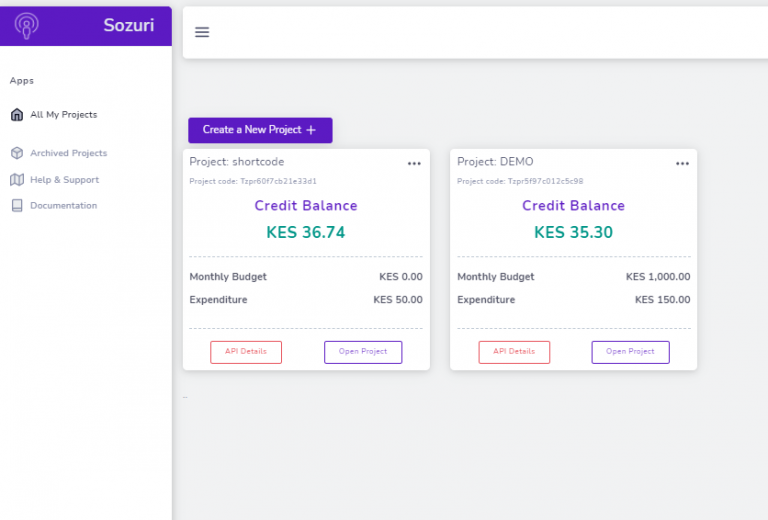
After you’ve created your project, click on the “OPEN PROJECT” button to access your project dashboard. You’ll see a dashboard that looks like the one below.
Managing Contacts
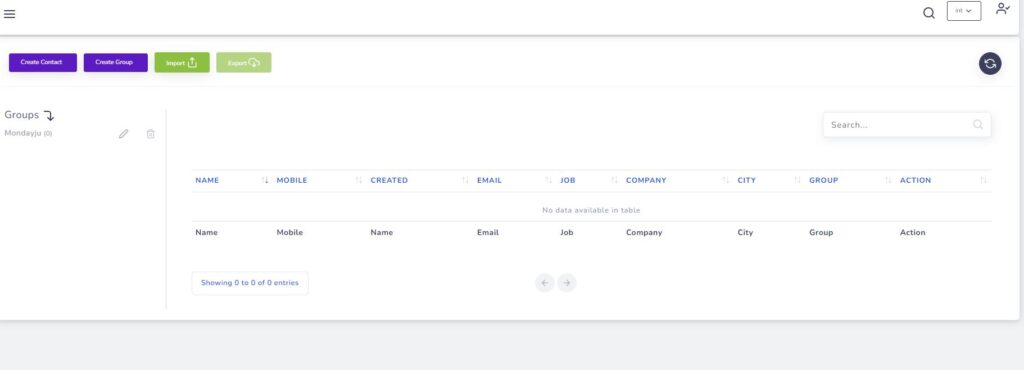
Step 4: On the Left Menu, Click on the Contacts menu to Manage create and upload Contacts. Note that we support .xlsx format only. The phone number column header is mobile and mobile phone number type is Fraction. prefix is strictly 254
Steps
Step 1. Create Contact Group
Step 2 Upload Contacts
Manging Campaigns (Optional)
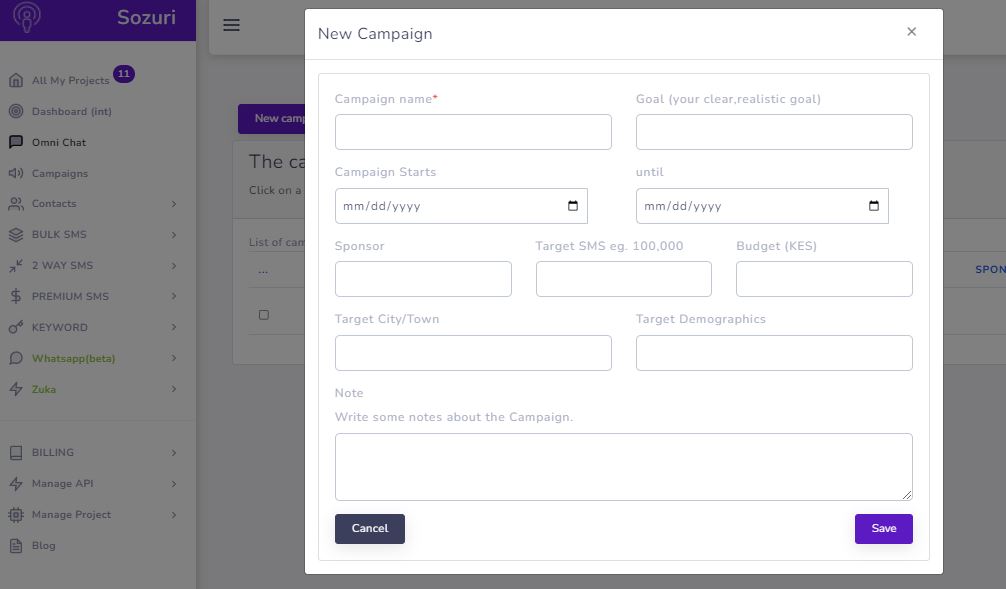
Step 5: Manage Campaigns
You can use the campaign management module to track your expenditure and the number of SMSes sent during a particular campaign. The Campaign tab is located at the bottom left side of the main dashboard.
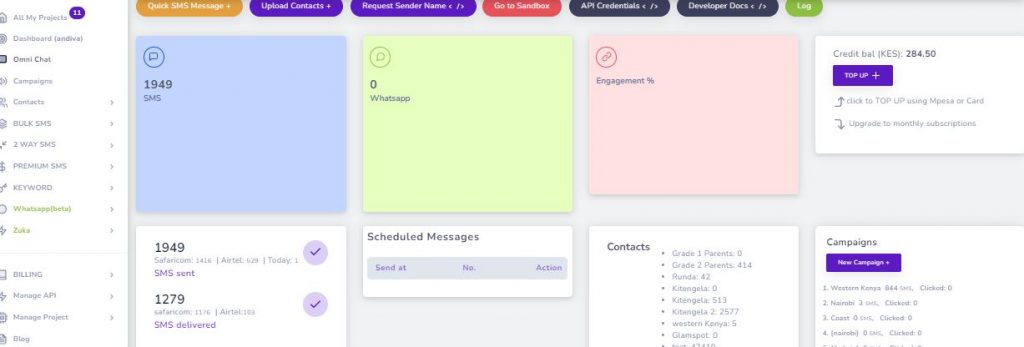
The Bulk SMS Module
Step 6: Use the Bulk SMS Module
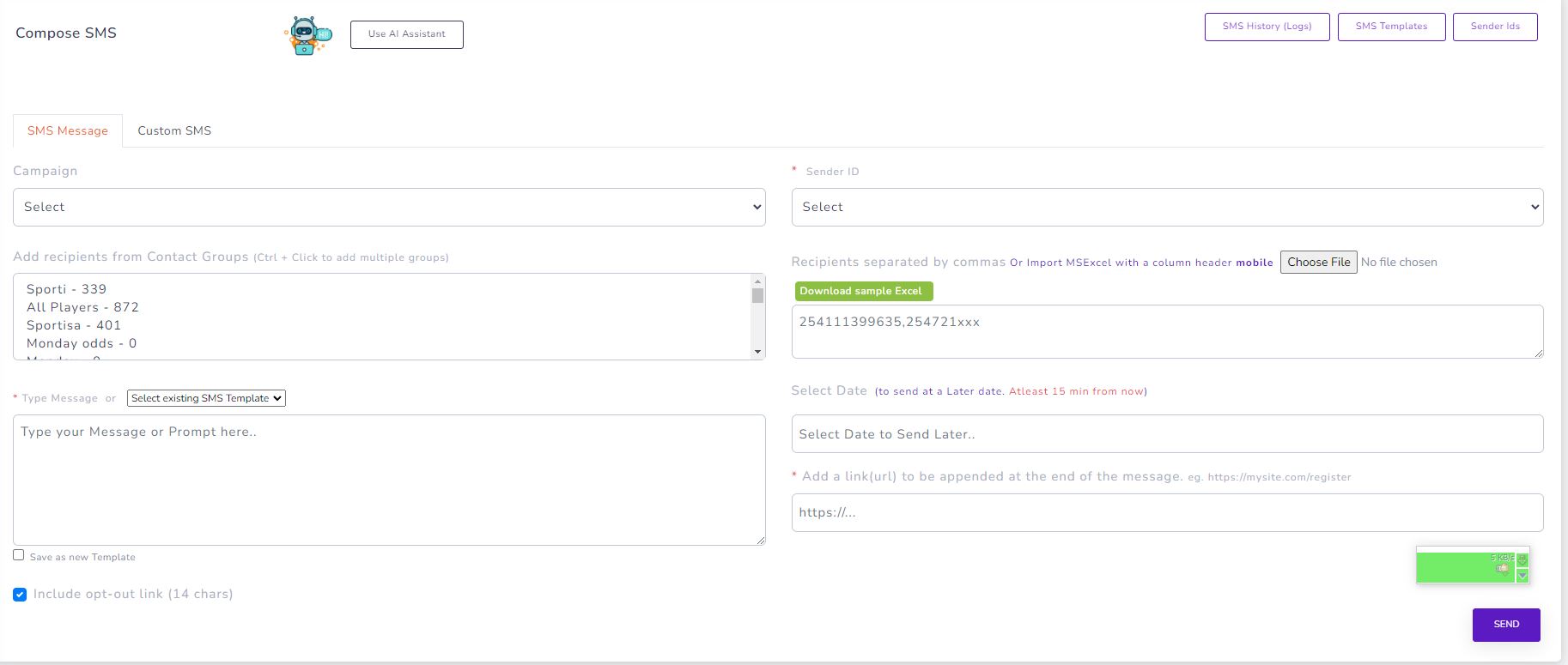
The bulk SMS module is where you’ll create and manage SMS templates, send SMS messages, and view and download SMS logs (outbox). Keep in mind that each SMS can only have a maximum of 160 characters.
At Sozuri, you can easily send SMS messages directly to your contacts by uploading an Excel file. To ensure smooth uploading, make sure that the mobile phone numbers are in a column labeled “mobile”. This is a necessary step to enable us to identify and process the phone numbers correctly. With this feature, you can conveniently and efficiently send SMS messages to your audience in a matter of seconds.